Desktop app — install & first vault
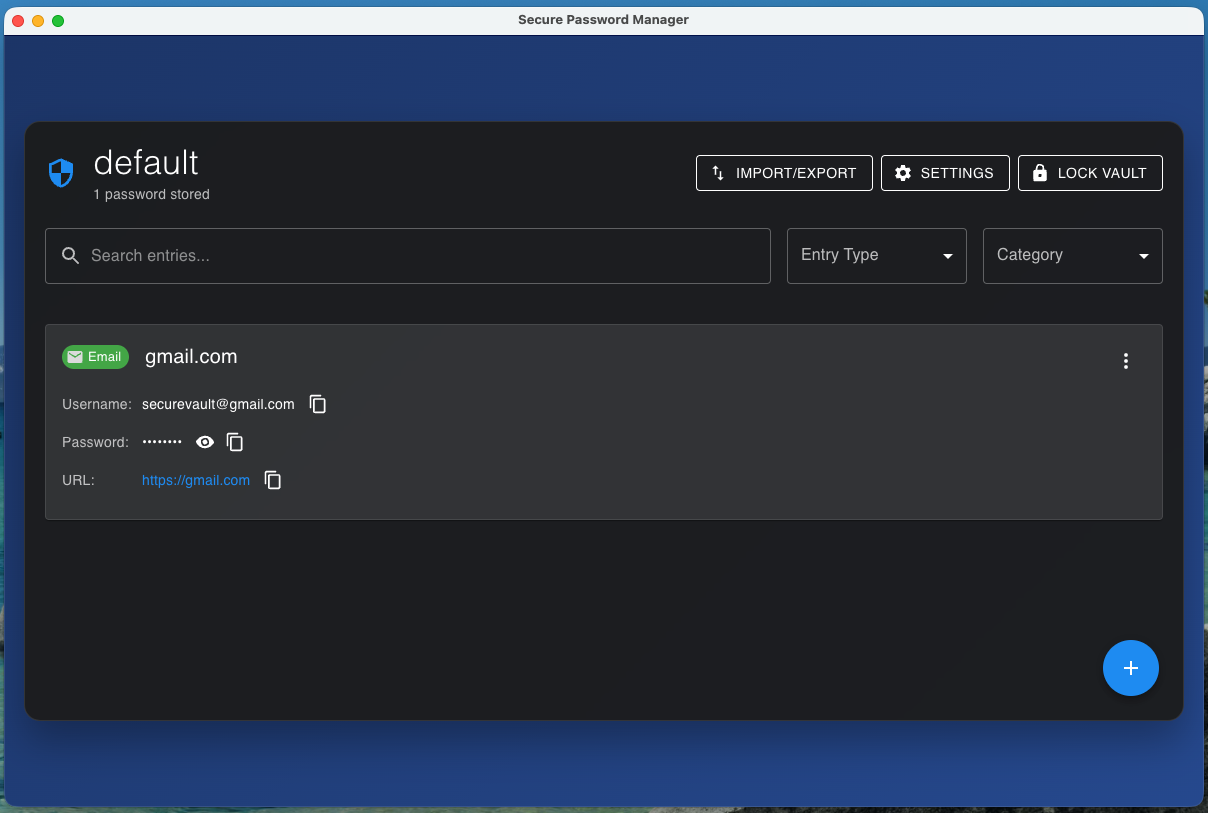
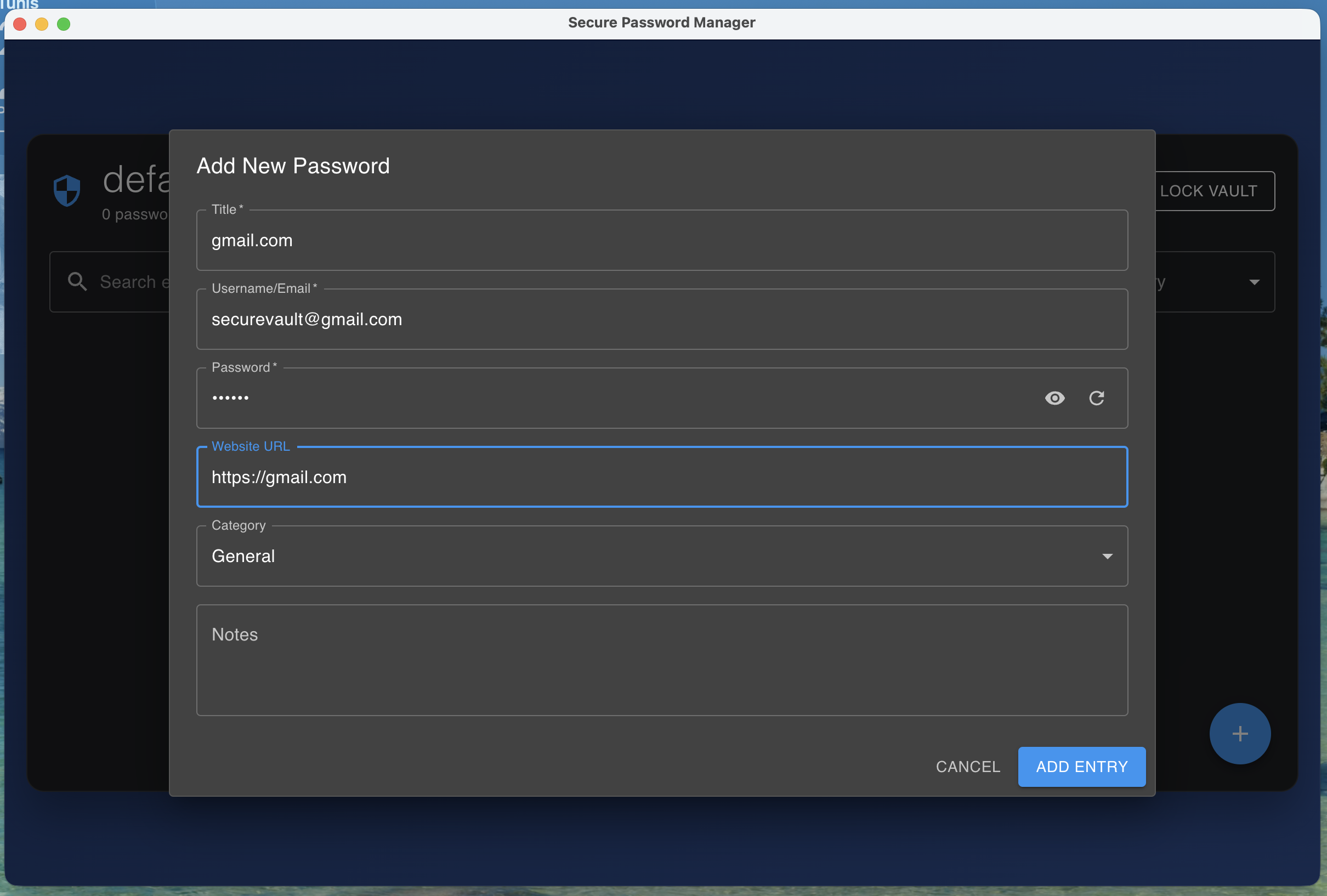
The SecureVault desktop app is a cross-platform password manager (macOS, Windows, Linux) built on Electron. It stores your logins in encrypted vaults and shares those vaults with the CLI.
Install
Download the build for your platform from the Releases page:
| OS | Download |
|---|---|
| macOS | .dmg (installer) or .zip (portable) |
| Windows | *-Setup.exe (installer) or portable .exe |
| Linux | .AppImage (portable) or .deb (Debian/Ubuntu) |
First launch on an unsigned build
The app is not yet code-signed, so your OS will warn that the developer is unidentified — this is expected.
- macOS — right-click the app → Open → Open (first time only), or run
xattr -dr com.apple.quarantine "/Applications/Secure Password Manager.app". - Windows — click More info → Run anyway on the SmartScreen prompt.
- Linux (AppImage) —
chmod +x Secure*.AppImage, then run it.
First-time setup
- Launch the application.
- Click Create Your First Vault.
- Name it and choose a strong master password. There is no built-in vault or default password: every vault starts with a password you chose.
Upgrading from an earlier version
Earlier versions created a default vault with the password changeme123. If you still have one, the app warns after you unlock it; use Change password to set your own. The vault is otherwise unchanged.
Create a new vault
- Click Create New Vault from the main screen.
- Enter a unique vault name.
- Create a strong master password — the app shows a live password-strength meter as you type.
- Confirm your password.
- Click Create Vault.
Your master password is never stored, unless you ask
SecureVault is zero-knowledge. If you forget the master password, only the vault's recovery key opens it — choose something long, unique, and memorable, and keep the recovery key somewhere safe. The app keeps it only if you tick Remember on this computer when unlocking (below).
Unlock a vault
Select the vault in the vault selector and enter its master password. The vault stays unlocked until you lock it, quit, or step away: it locks automatically when your computer sleeps or its screen locks.
Tick Remember on this computer to keep the password, encrypted by the system keychain. Next time, clicking the vault unlocks it straight away, after Touch ID on a Mac that has it. Anyone using your account on this computer can then open the vault in the app, so leave it off on a shared account. The box is offered only where the system keychain can encrypt it (on Linux, a keyring such as GNOME Keyring or KWallet must be running).
A vault that requires a key file asks for it after the password; after that the app reads it from where you last used it, so unlocking is one step while it's there. A saved password fills in the password only.
A vault with a saved password is labeled Password saved. To drop it, unlock the vault and click Forget saved password in its header: as with environment vaults, only someone who can open the vault can change how it opens. If the password was changed elsewhere, the saved one stops working: the app forgets it and asks you to type the new one. Changing the password in the app updates the saved one, and deleting the vault forgets it. Forget all saved passwords in Settings drops every saved password, for every vault.
Open a vault from another folder
Vaults you create live in the app's own folder. To use one kept elsewhere (a shared drive, a USB stick, a project folder), click Open… in the vault list and pick its .vault file. It's listed under its file name, shows where it lives, and works like any other vault: it's unlocked, saved and backed up in place (the backup sits next to it as <file>.backup). The list is kept across restarts.
A vault opened this way is never deleted by the app: Remove from list (the icon on its card) takes it off the list and forgets its saved password, and the file stays where it is. If the file is moved or deleted, the vault shows as Missing until you remove it. Environment vaults can't be opened here; open them under Environments.
Next
- Managing passwords — add, search, copy, edit, delete.
- Environment vaults — the
.envvaults the CLI uses, in the app. - Security & best practices — how encryption works and how to stay safe.